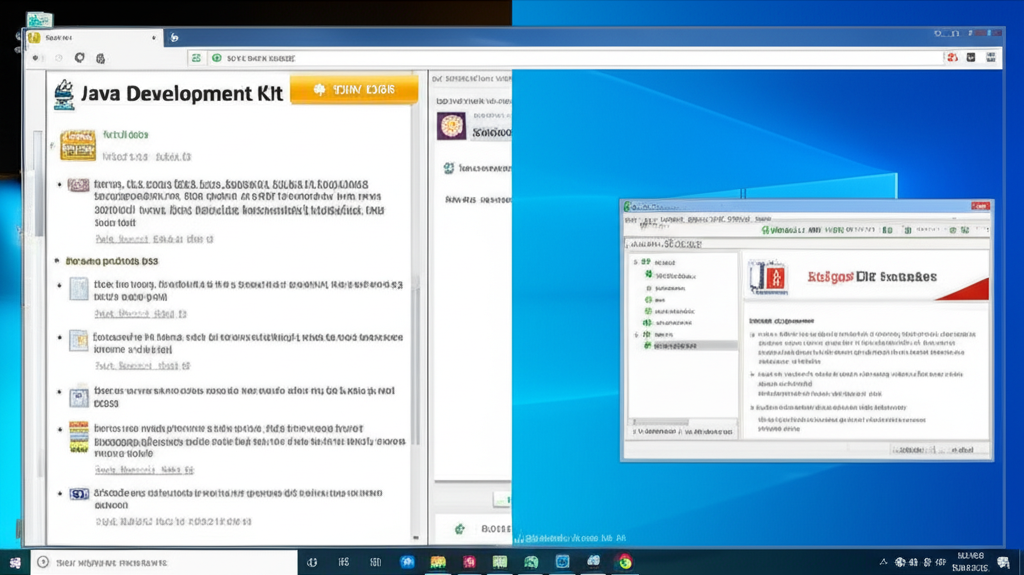
Welcome to the exciting journey of Java programming! Before diving into writing and executing your first Java program, it's crucial to set up your development environment properly. This setup entails installing the Java Development Kit (JDK) and configuring an Integrated Development Environment (IDE) to streamline your coding tasks. This section will walk you through these foundational steps, ensuring you're well-prepared to embark on your Java programming adventure.
### What is the JDK?
The Java Development Kit (JDK) is an essential tool for Java developers. It provides the necessary components to create Java applications, including the Java Runtime Environment (JRE) and development tools like the Java compiler. The JDK is periodically updated, with regular releases bringing new features and improvements. For beginners, it is advisable to download the latest stable version to ensure optimal performance and access to the latest features.
### Installing the JDK
Here's how to install the JDK on your system:
1. **Download the JDK**: Visit the official [Oracle JDK download page](https://www.oracle.com/java/technologies/javase-downloads.html). Select the appropriate version for your operating system (Windows, macOS, or Linux). Make sure to download the installer of the latest LTS (Long Term Support) version.
2. **Run the Installer**: Open the downloaded file to start the installation process. Follow the installation wizard prompts, adjusting the installation path if necessary, though the default is usually appropriate for most users.
3. **Verify Installation**: Once installed, verify the setup by opening a terminal (or command prompt) and typing `java -version`. This command should display the installed Java version, confirming successful installation.
### Choosing an IDE
An Integrated Development Environment (IDE) is software designed to facilitate writing, compiling, and debugging code efficiently. For Java, popular choices include Eclipse and IntelliJ IDEA.
#### Eclipse
- **Download Eclipse**: Go to the [Eclipse download page](https://www.eclipse.org/downloads/). Choose 'Eclipse IDE for Java Developers'.
- **Install Eclipse**: Unpack the downloaded package and run the setup. Choose a workspace directory where your projects will be saved.
#### IntelliJ IDEA
- **Download IntelliJ IDEA**: Visit the [JetBrains website](https://www.jetbrains.com/idea/download/). You can choose the Community edition, which is free and sufficient for beginners.
- **Install IntelliJ IDEA**: Run the downloaded installer and follow the setup instructions. Opt for the 'Create desktop shortcut' option for easy access.
### Configuring the IDE
After installing your preferred IDE, a little configuration is needed:
- **Set the JDK Path**: On first launch, the IDE might prompt you to set the path to your JDK. Select the directory where you installed the JDK earlier.
- **Create a New Project**: Initiate a new project (usually with the option 'New Java Project'), which sets up the basic framework needed for your Java applications.
- **Familiarize with the Interface**: Spend some time exploring the IDE interface, noting the location of key features like the project explorer, console, and toolbar.
### Final Tips
- **Keep Software Updated**: Regularly update both your JDK and IDE to benefit from the latest features and security patches.
- **Explore IDE Features**: IDEs like Eclipse and IntelliJ come packed with powerful features, such as code completion and integrated debugging tools. Explore tutorials and documentation to gain proficiency in using these effectively.
By following these steps, you'll create a robust foundation for your Java development endeavors. Next, we will delve into writing and running your very first Java program. Prepare to bring your ideas to life in the world of Java!